
Our app logs in using the Secure Application Model, which allows us to authenticate in an automated and secure way while complying with Microsoft’s security guidelines. To remain authorized, we are required to refresh MFA every 30 days.
However, your tenant currently has a Conditional Access policy that blocks our automated login attempts. As a result, our app may fail to run or only function intermittently. To ensure continuous operation, we recommend adjusting the Conditional Access configuration.
We propose adding the IP address of our backend as a trusted location, and then excluding this trusted location in the relevant Conditional Access policies. This ensures that all checks can continue to run properly.
The two IP addresses that should be added as trusted locations are:
-
95.217.146.238
-
136.243.149.95
-
148.251.165.193
How to update the Conditional Access configuration
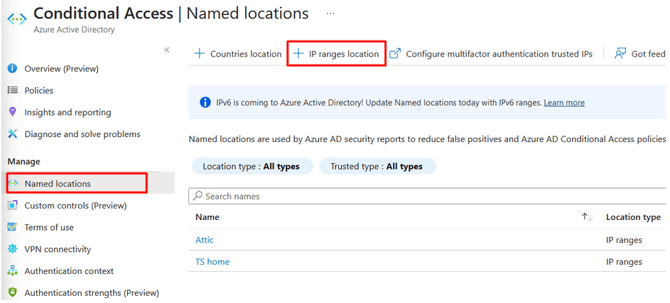
Navigate to:
https://portal.azure.com/#blade/Microsoft_AAD_IAM/ConditionalAccessBlade/NamedLocations
Click IP ranges locations
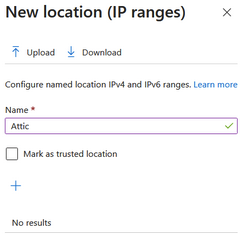
Add a name: “Attic”
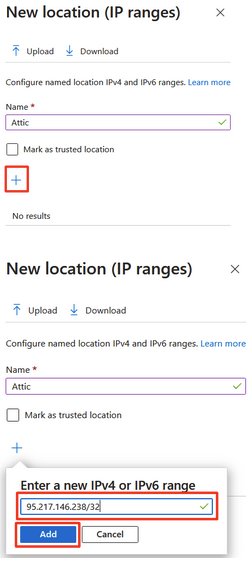
Click the + icon and add the following IP: 95.217.146.238/32
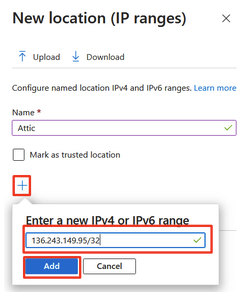
Click + again and add the next IP-address: 136.243.149.95/32
Click Add
Navigate to:
https://portal.azure.com/#blade/Microsoft_AAD_IAM/ConditionalAccessBlade/Policies
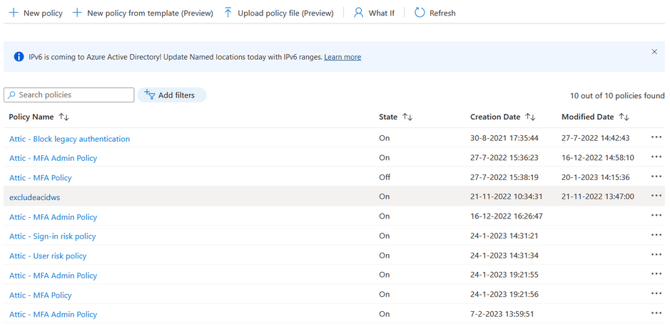
Select the policy or policies that are blocking the login
-
Go to Conditions → Locations → Exclude
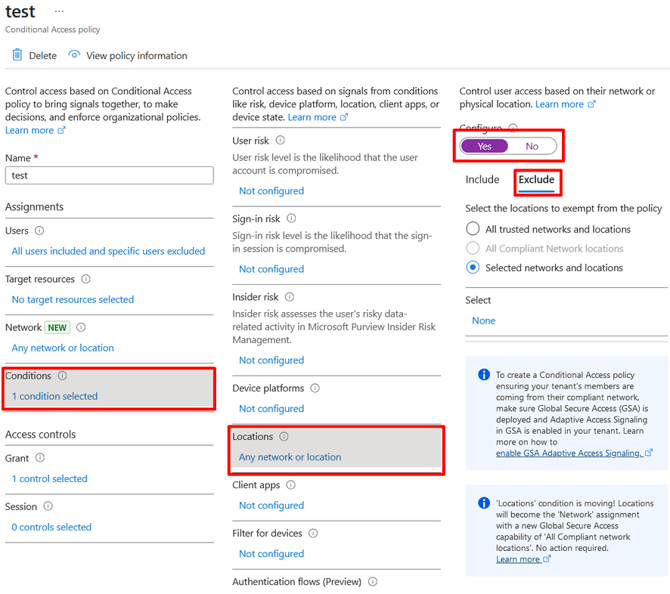
-
Choose Selected locations → None
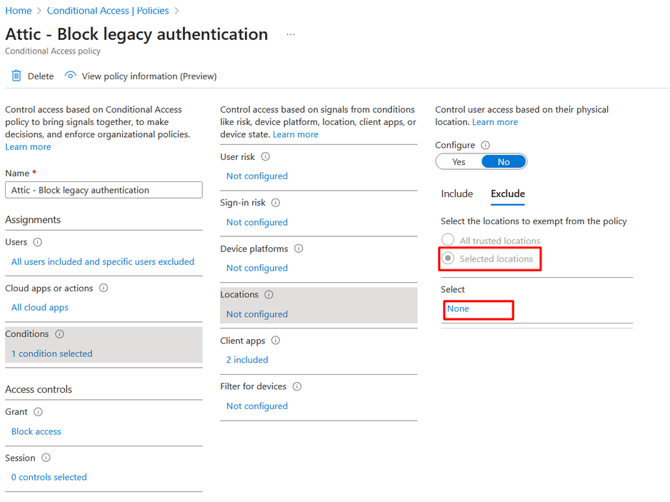
-
Add the “Attic” trusted location and click Select
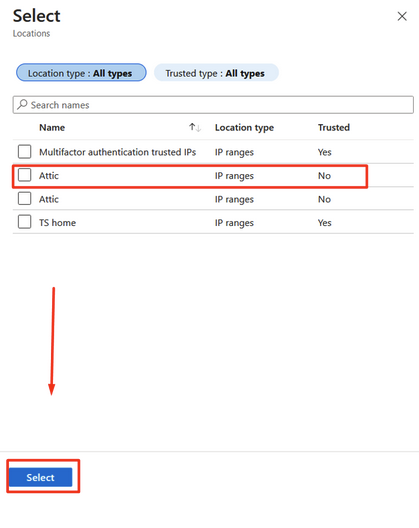
Repeat these steps for every policy that may block Attic’s login.
How to identify which CA policies are blocking access
This article explains how to find the Conditional Access policies that are preventing Attic from signing in: