
Overview
When an end customer stops using Attic, two actions are required:
-
Cancel the subscription in the Attic Partner Portal: this is the administrative step that stops billing.
-
Offboard the Attic app from the tenant: this is the technical step that removes the connection between Attic and the customer tenant.
This article explains how to cancel the subscription in the Attic Partner Portal.
To complete the offboarding process, the Attic app must also be removed from the tenant. For instructions on how to do this, please refer to the Offboarden Attic App knowledge base article.
Steps to Cancel a Subscription
-
Go to Partner Portal and log in.
-
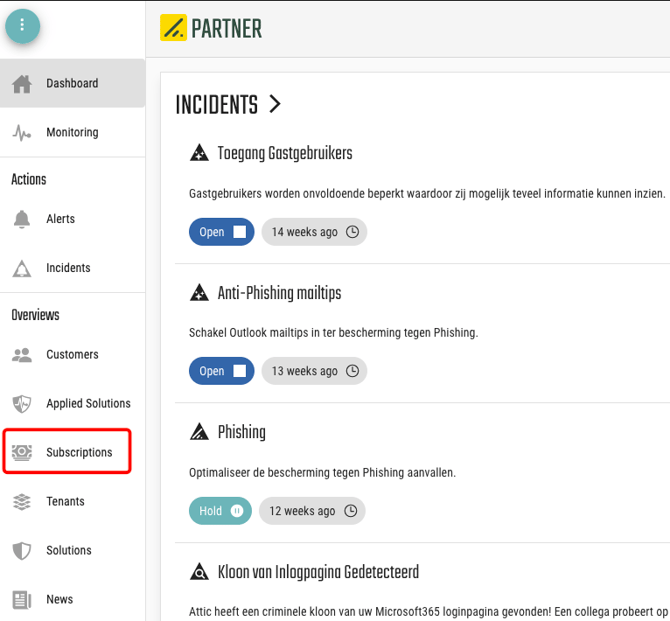
In the menu, select Subscriptions.
-
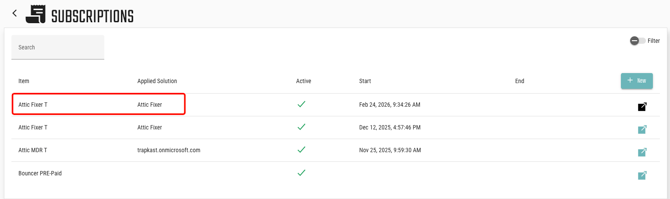
Find and select the subscription for the customer you want to offboard.
-
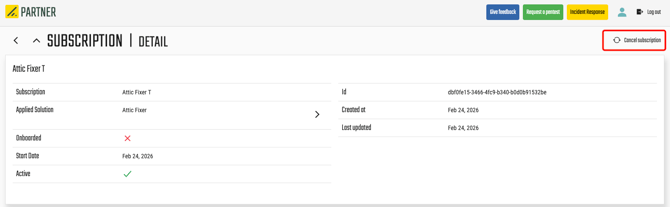
On the subscription page, click Cancel Subscription in the top-left corner.
-
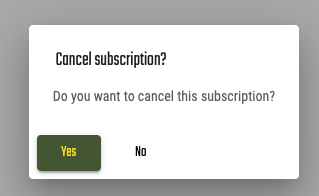
Confirm the cancellation.
Result
-
The subscription is deactivated immediately.
-
Billing for this subscription stops from that moment onward.
Note that this action only completes the administrative part of the offboarding process. The Attic app may still remain connected to the customer tenant.
Next Step: Offboard the Attic App
To fully complete the offboarding process, the Attic app must be removed from the tenant. This step ensures that the connection between Attic and the customer environment is fully terminated.
Please follow the instructions in the Attic App Offboarding knowledge base article to complete this step.