
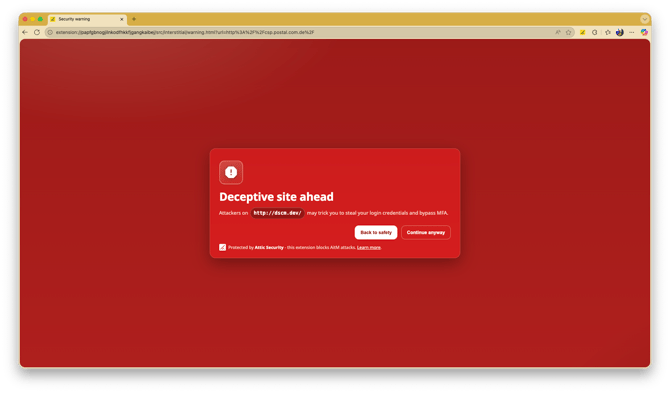
Prerequisites
- Access to Microsoft Intune admin center
- Global Administrator or Intune Administrator role
- Users must be running Chrome or Edge browsers
Step 1: Navigate to Device Configuration Profiles
- Open the Microsoft Intune admin center: https://intune.microsoft.com
- In the left navigation, select Devices
- Select Configuration profiles
- Click + New Policy
Step 2: Create Configuration Profile
- In the Platform dropdown, select Windows 10 and later
- In the Profile type dropdown, select Settings Catalog
- Click Create
Step 3: Configure Basic Settings
- Name: Enter "Attic AitM Blocker Extension"
- Description: Enter "Deploys Attic AitM Blocker browser extension to protect against phishing"
- Click Next
Step 4: Configure Extension Settings
For Microsoft Edge:
- Click Add Settings
- In the configuration settings, search for "extension"
- Navigate to: Microsoft Edge\Extensions
- Find and configure: Control which extensions are installed silently
- Set to Enabled
- Add the Attic AitM Blocker extension ID: ioelelfnpappeljacbaiedmfkgkiafeg
- Click OK
For Google Chrome:
- Click Add Settings
- In the configuration settings, search for "extension"
- Navigate to: Google Google Chrome Extensions
- Find and configure: **Configure the list of force-installed apps and extensions**
- Set to Enabled
- Add: ogkdpcgpikhdlbnpmikodokfdbheajgm
- Click OK
Step 5: Assign to Groups
- Click Next to proceed to Assignments tab (skip Scope tags)
- Under Included groups, click + Add groups
- Select the groups that should receive the extension (e.g., "All Users" or specific security groups)
- Click Select
- Click Next
Step 6: Review and Create
- Review all settings
- Click Create to deploy the policy
Step 7: Verify Deployment
- Navigate to Devices > Configuration profiles
- Find your "Attic AitM Blocker Extension" policy
- Click on the policy to view deployment status
- Monitor the deployment status under Device status and User status
Notes
- The extension will be automatically installed on user devices
- Users cannot disable or remove the extension
- The extension runs silently in the background and only activates when AitM threats are detected
- No user interaction is required after deployment
User Communication:
It is recommended to inform users about this security enhancement before deployment:
- Explain that the extension protects against sophisticated phishing attacks
- Inform them that they may see security warnings on suspicious websites
- Provide a helpdesk contact for questions or concerns
- Share that this is part of the organization's security improvement initiatives