
MFA Posture Score
The posture score is a points-based metric that rates the tenant's MFA configuration out of 100 points. It is broken down into six categories, each reflecting a different aspect of MFA security.
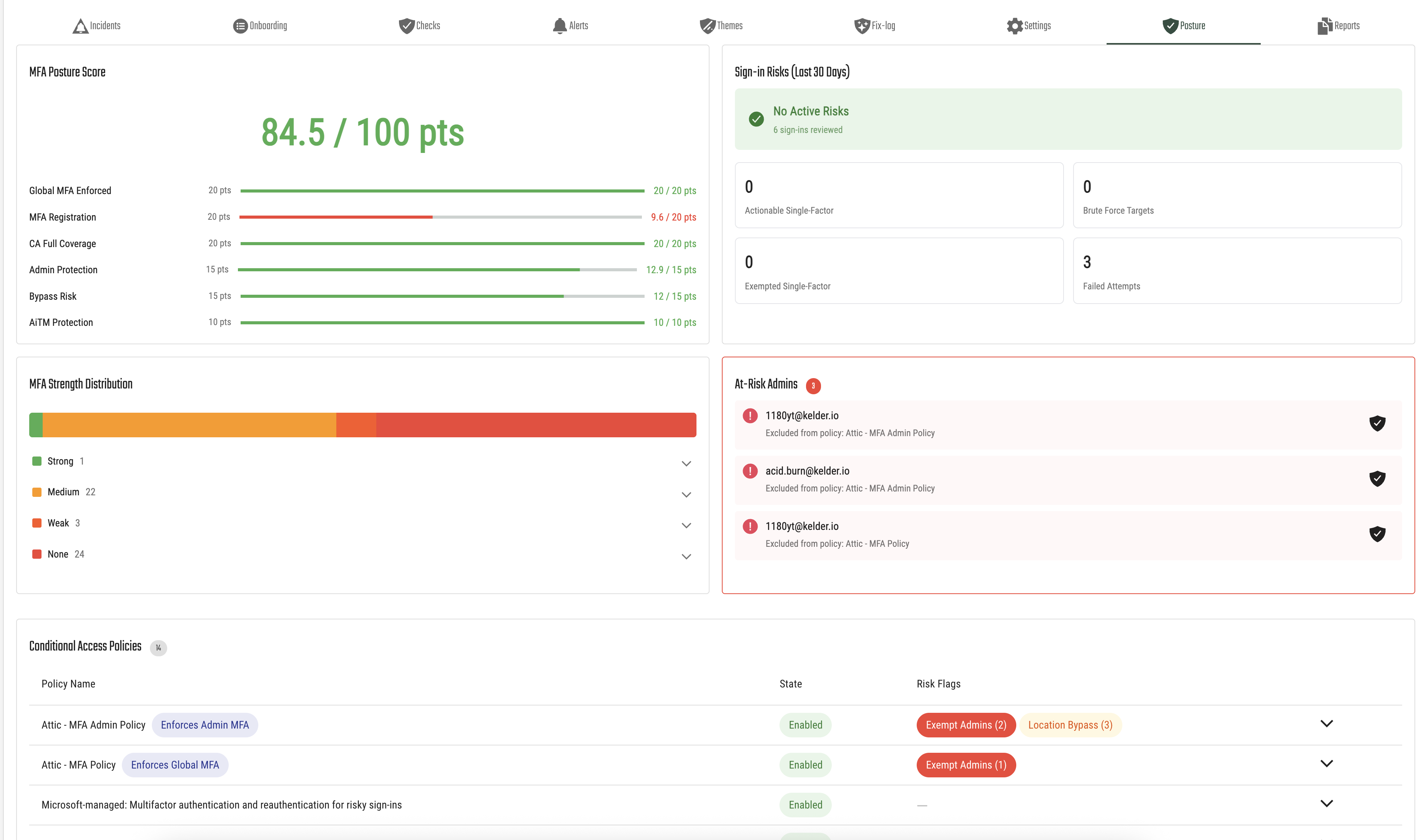
Scoring Categories
| Category | Max Points | What It Measures |
|---|---|---|
| Global MFA Enforced | 20 | Whether MFA is enforced for all users via Conditional Access. Full points are awarded when a Conditional Access policy requires MFA for all users. Tenants using only Security Defaults receive partial credit (10 pts) because MFA is only triggered when Microsoft detects risk, not on every sign-in. |
| MFA Registration | 20 | The percentage of users who have registered at least one MFA method. A 100% registration rate earns full points. For example, if 83% of users are registered, the score would be 16.6 / 20 pts. |
| CA Full Coverage | 20 | How completely Conditional Access policies cover the tenant's users and applications. Full coverage means all users and apps are protected by MFA-requiring policies. |
| Admin Protection | 15 | Whether all administrator accounts are protected by MFA. Points are deducted for each admin that is either excluded from MFA policies or has not registered MFA methods. |
| Bypass Risk | 15 | Whether any Conditional Access policies have location-based or platform-based exceptions that could allow users to skip MFA. Fewer bypass paths means a higher score. |
| AiTM Protection | 10 | Protection against Adversary-in-the-Middle phishing attacks. Points are awarded for having Clone Detection installed (5 pts) and the Clone Intervention Screen enabled (5 pts). |
Each category displays a progress bar showing the earned points relative to the maximum. The overall score is the sum of all earned points.
Security Defaults Tenants
Tenants that use Microsoft Security Defaults instead of Conditional Access will see some categories marked as locked. This is because Security Defaults does not provide the granular controls or data needed to evaluate those categories. Locked categories show "N/A" and a note explaining that an Entra ID P1 license is required to unlock full monitoring. The AiTM Protection category is always scored, regardless of MFA mode.
Sign-in Risks (Last 30 Days)
This section analyzes sign-in activity from the past 30 days to surface authentication risks. It shows:
- Active Risks status — A green checkmark with "No Active Risks" when everything looks good, or an alert when risks are detected.
- Total sign-ins reviewed — The number of sign-in events analyzed.
The section also displays four key metrics:
| Metric | Description |
|---|---|
| Actionable Single-Factor | Sign-ins that succeeded with only a single authentication factor and are not covered by an exemption. These represent users who should be using MFA but are not. |
| Brute Force Targets | Users whose accounts have been targeted by repeated failed sign-in attempts. These accounts are at higher risk and should have strong MFA enabled. |
| Exempted Single-Factor | Single-factor sign-ins that are covered by a known exemption or policy exception. |
| Failed Attempts | The total number of failed sign-in attempts across the tenant. |
Metrics that indicate active risk are highlighted in red.
MFA Strength Distribution
This section shows the quality of MFA methods registered across your user base, visualized as a stacked bar chart:
- Strong (green) — Phishing-resistant methods such as FIDO2 security keys, Windows Hello for Business, or certificate-based authentication.
- Medium (orange) — Standard MFA methods like the Microsoft Authenticator app with push notifications or phone sign-in.
- Weak (red/orange) — Less secure methods such as SMS or voice call verification.
- None (red) — Users who have no MFA methods registered at all.
You can expand each strength level to see the individual users and which specific MFA methods they have registered. This helps you identify users who should be upgraded to stronger authentication methods.
At-Risk Admins
Administrator accounts have elevated privileges, making them high-value targets for attackers. This section lists admins that are at risk because they are either:
- Excluded from a Conditional Access policy — The admin is explicitly exempted from an MFA-enforcing policy (the policy name is shown).
- No MFA registered — The admin account does not have any MFA methods set up.
If at-risk admins are detected, this section is highlighted with a red border to draw attention. Each admin can be whitelisted if the risk is accepted (for example, an emergency access account that is intentionally excluded).
For tenants using Security Defaults, this section notes that all admins are protected by Security Defaults.
Brute Force Targets
This section appears only when brute force activity is detected. It lists user accounts that have been targeted by repeated failed sign-in attempts, along with:
- The user's email address.
- Their current MFA strength level (Strong, Medium, Weak, or None).
- The MFA methods they have registered.
Users with weak or no MFA methods who are being targeted by brute force attacks should be prioritized for MFA enrollment or method upgrades.
Conditional Access Policies
This section provides a complete view of all Conditional Access policies configured in the tenant, focusing on MFA enforcement and potential risks. It is only shown for tenants using Conditional Access (not Security Defaults).
Enforcement Banners
At the top, banners indicate whether MFA is enforced for:
- Administrators — Whether a policy specifically requires MFA for admin roles.
- All users — Whether a policy requires MFA for the entire user base.
Missing enforcement is flagged with a warning banner.
Policy Table
Each policy is listed with:
- Policy Name — With badges indicating if it serves as the admin MFA enforcer or global MFA enforcer.
- State — Whether the policy is Enabled, Report-Only, or Disabled.
- Risk Flags — Detected risks for the policy:
- Exempt Admins (count) — Red flag indicating admin accounts are excluded from this policy.
- Location Bypass (count) — Orange flag indicating trusted locations that allow skipping MFA.
- Platform Bypass — Orange flag indicating only specific platforms are covered, leaving others unprotected.
Policies are sorted to show the most important ones first: enabled policies with risks appear at the top.
Policy Details
Expanding a policy reveals:
- Policy Intent — A human-readable summary of what the policy does, who it applies to, and which applications it covers.
- Exempt Admins — A list of admin accounts excluded from the policy, with the option to whitelist accepted exceptions.
- Location Bypasses — Trusted network locations that allow bypassing MFA, with IP range details.
- Platform Bypasses — If the policy only targets specific platforms (e.g., Windows and iOS), other platforms are unprotected.
- View Raw Configuration — Opens the full policy JSON for advanced review.
Whitelisted Items
If you have whitelisted any at-risk admins, trusted locations, or policy exceptions, they appear in a separate section at the bottom of the page. Whitelisted items are excluded from risk calculations and the posture score. You can remove a whitelisted item at any time to include it in scoring again.
Understanding Tenant MFA Modes
The page adapts based on the tenant's MFA configuration mode:
| Mode | Description |
|---|---|
| Conditional Access | Full posture monitoring is available. All six scoring categories are active, and Conditional Access policies are analyzed for risks. |
| Security Defaults | Microsoft's baseline MFA protection is enabled. Some scoring categories are locked because Security Defaults does not provide the granular data or controls needed. A banner indicates this mode. |
| Security Defaults (Upgrade Available) | Security Defaults is enabled, but the tenant has an Entra ID P1 license available. A banner recommends upgrading to Conditional Access for full monitoring. |
| No MFA Protection | Neither Security Defaults nor Conditional Access is configured. A critical banner warns that the tenant has no MFA protection. |