
Accessing the MFA Posture Overview
Navigate to Solutions > Applied Solutions and select the MFA Posture tab, or go directly to the MFA Posture page from the main navigation.
Understanding the Overview Table
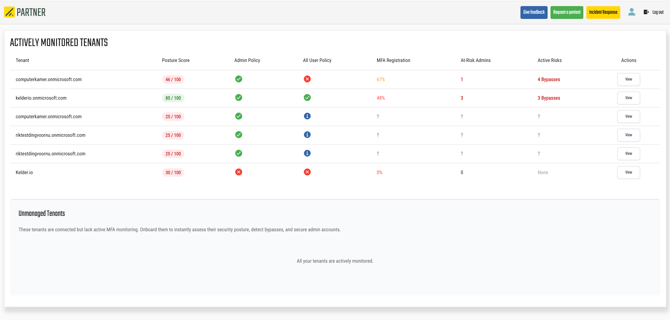
Each monitored tenant is displayed as a row with the following columns:
Posture Score
A points-based score out of 100 that reflects the overall MFA security posture of the tenant. The score is color-coded for quick assessment:
- Green (80–100 pts) — Good posture. MFA is well-configured and broadly enforced.
- Orange (50–79 pts) — Needs improvement. Some areas require attention.
- Red (0–49 pts) — Critical. Significant MFA gaps exist.
For a detailed breakdown of how the score is calculated, see MFA Posture — Tenant Details.
Admin Policy
Indicates whether MFA is enforced for administrator accounts via a Conditional Access policy:
- Checkmark — An active Conditional Access policy enforces MFA for admins.
- X — No admin-specific MFA policy detected.
- ? — Tenant uses Security Defaults (admin enforcement is handled automatically by Microsoft).
All User Policy
Shows whether MFA is enforced for all users in the tenant:
- Checkmark — A Conditional Access policy enforces MFA for all users.
- X — No global MFA enforcement detected.
- ? — Tenant uses Security Defaults.
MFA Registration
The percentage of users who have registered at least one MFA method. A high registration rate means users are ready to authenticate with MFA when prompted. Displays ? for Security Defaults tenants where this data is not available.
At-Risk Admins
The number of administrator accounts that are either excluded from MFA policies or do not have MFA methods registered. Even a single at-risk admin can be a significant security concern. Displays ? for Security Defaults tenants.
Active Risks
Highlights detected policy risks such as platform or location bypasses in Conditional Access policies. Possible values:
- None — No risks detected.
- A number — The count of policies with detected bypass risks.
- Upgrade Available — The tenant uses Security Defaults but has a premium license available, meaning it could benefit from Conditional Access.
- ? — Data not available.
Actions
Click View to open the detailed posture page for that tenant.
Sorting and Prioritization
The table is sorted by default to surface the tenants that need the most attention first:
- Tenants with active risks appear at the top.
- Then tenants with at-risk admins.
- Then tenants with the lowest posture scores.
This default ordering helps you prioritize your remediation efforts across your tenant portfolio.
Potential Tenants
Below the main table, you may see a Potential Tenants section. This lists tenants that are connected to Attic Security but do not yet have MFA posture monitoring enabled. Click Onboard to start monitoring a tenant's MFA posture.